How do I add guests and groups?
Guests are organised in groups (a family, a couple). It's the group that answers the RSVP.
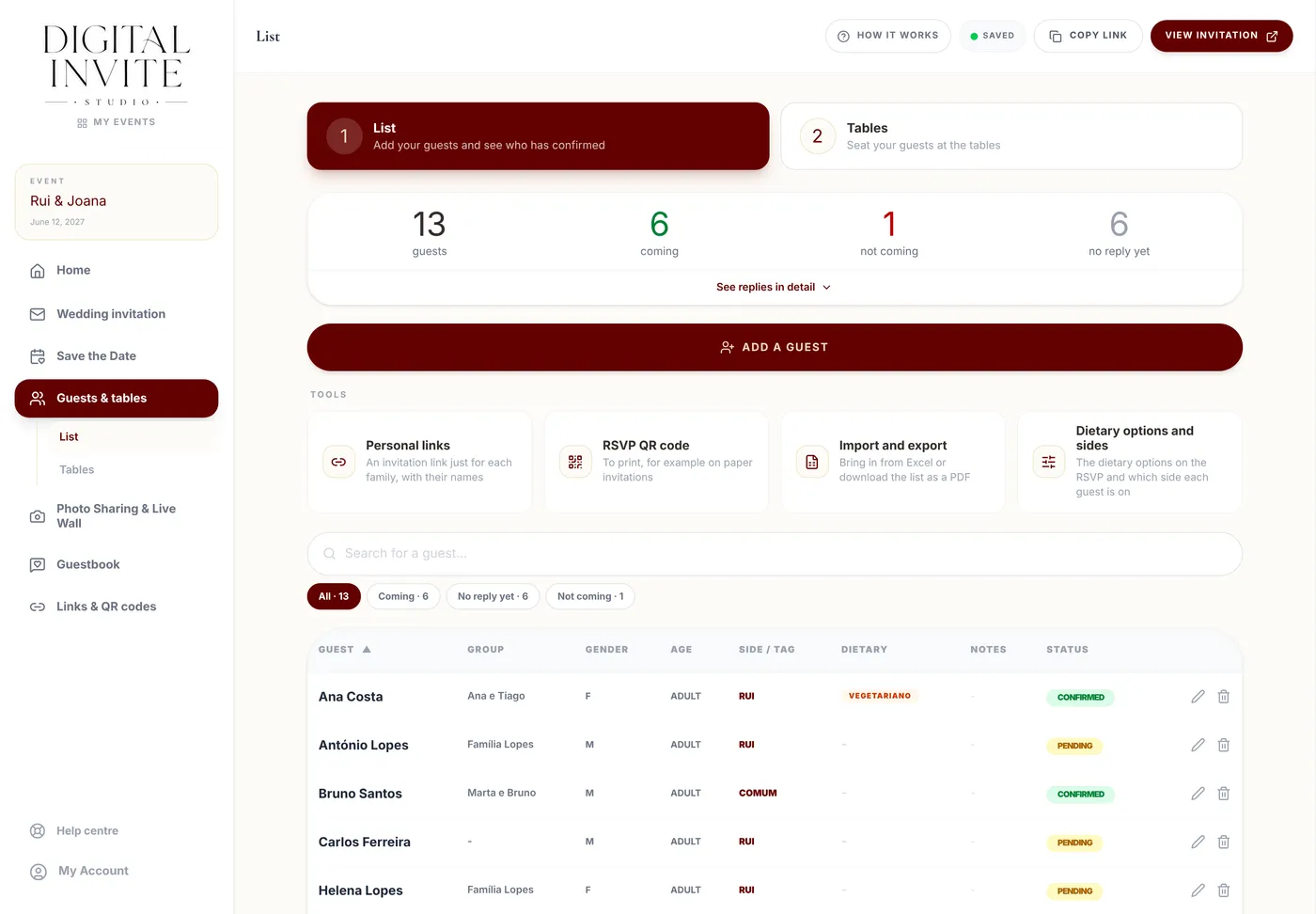
Step by step
- 1
Open Guests & tables and the Guests tab.
- 2
Click Add a guest. In the Add to List window, enter the Name and choose the Category (Adult, Child or Baby), the Gender and the Side.
- 3
If they're a family or a couple, enter a Group Label (for example, *Silva Family*) and click Add Another to Group to add more people to the same group.
- 4
Click Save Guest(s).
- 5
You can add Dietary Restrictions and Notes / Observations for each person.
Tips
- When a guest confirms attendance, they see their whole group and answer for each person.
- To edit or delete someone, use the icons at the end of each table row.
- At the top, one line shows how many guests there are, how many are coming, not coming and have given no reply yet. See replies in detail opens the RSVP Summary, with the total expected and the split by age, gender, side and dietary needs. Below, Search for a guest and the filters (All, Coming, No reply yet, Not coming) help with long lists; on a phone, tapping a guest opens the edit window.
- Under Tools, the Dietary options and sides button opens the two list settings: your side tags, under Manage Tags (Sides), and the dietary options guests pick in the RSVP, under RSVP options (Dietary).
Frequently asked questions
Do babies count as a seat?
In the statistics they appear under Babies. In personalised links, the seats reserved count adults and children, not babies, and you can correct the number.
Can I add a whole list at once?
Yes, by importing an Excel file. See “How do I import and export the guest list?”.