How do I edit the invitation texts and photos?
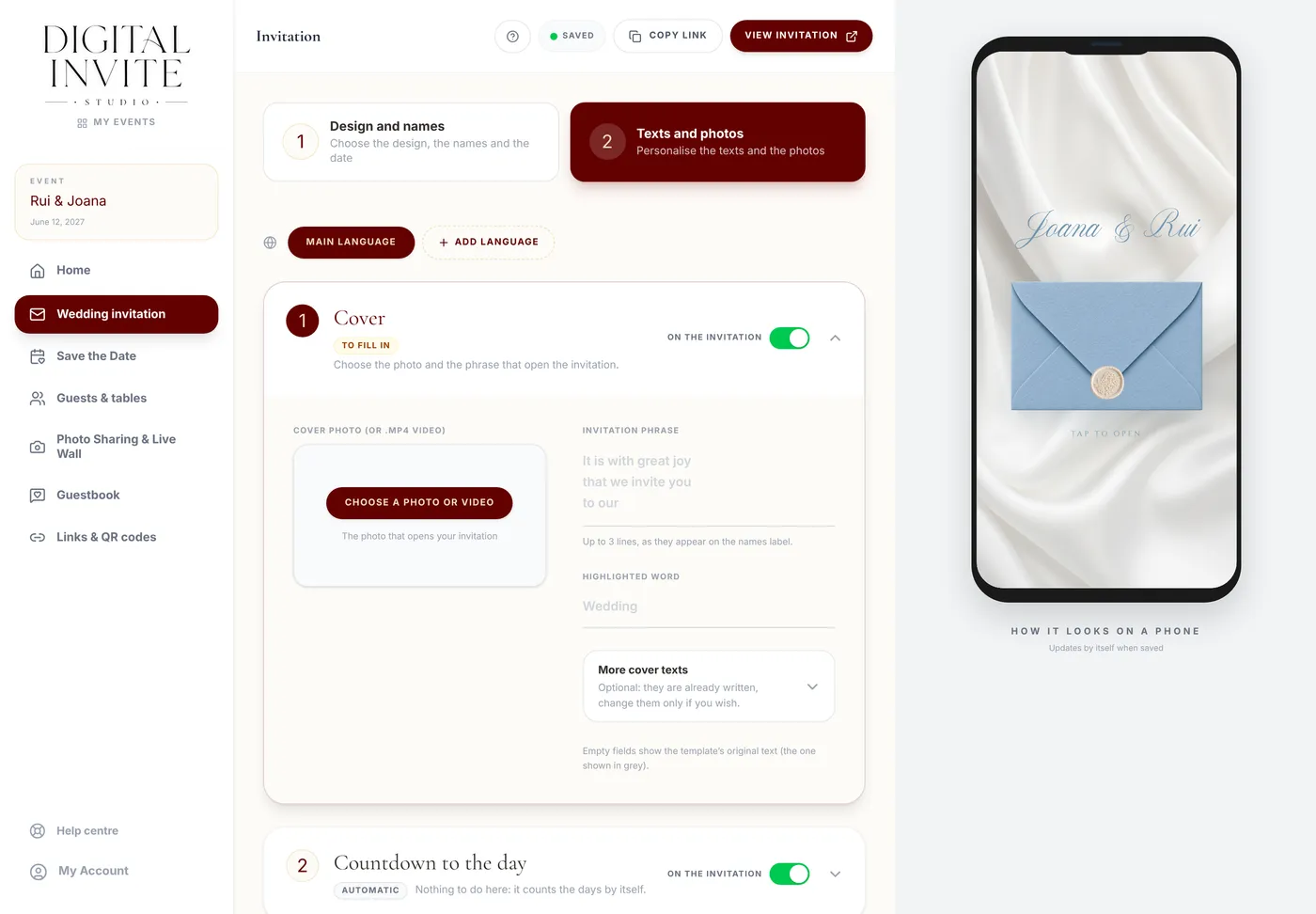
The editor has one section for each part of the invitation. The phone next to it shows the result.
Step by step
- 1
Open Wedding invitation and, in the two numbered steps above the editor, pick Texts and photos.
- 2
The editor has one numbered section for each part of the invitation, from 1 to 9, in this order: Cover, Countdown to the day, Your story, Photo gallery, Programme of the day, Where and when, Useful information, Confirming attendance and Farewell and contacts. Click one to open it.
- 3
Write the texts and upload the photos. On the cover you can use a photo or an
.mp4video; in the gallery, up to 5 photos. - 4
Each section shows whether it is Filled in, To fill in or Automatic (the countdown and confirming attendance work by themselves). On the Cover, the photo comes first; the small texts, which are already written, are under More cover texts. In Where and when and Countdown to the day, they are under Titles and texts of this part.
- 5
There is no save button: the dashboard saves on its own a few seconds after you stop typing. Saved appears at the top.
- 6
Check the result on the phone next to it.
Tips
- In the Voyage Emerald template (Travel collection), the Cover has its own fields: the cover photo appears on the passport page, in black and white; there are the full names and titles (Mrs., Mr.), the passport's event and country, the boarding pass phrase and side text, and the titles of the plane, the tag and the RSVP. The boarding pass time, stopover, destination and check-in come automatically from the time and names of the venues (Where and when) and the RSVP deadline; only fill them in to write something else. The QR code on the boarding pass opens the invitation's RSVP page.
- The Cover fields depend on the chosen template. In the envelope templates (for example Renaissance Blue or Fiesta Citrus) you can change the Invitation phrase, the Highlighted word ("Wedding"), the Save the Date title and the title and subtitle of the details and RSVP buttons. Section titles are a single field each. An empty field shows the template’s original text, in grey (and goes back to it if you delete what you wrote). That original text appears in the Invitation language (under Design and names): Português, English or Español. With "Same as the link", it follows the link (/pt, /en or /es). The same language applies to the RSVP form and the WhatsApp link preview. Whatever you write always appears exactly as written.
- In the Velvet Burgundy template (Velvet collection), the invitation starts with a velvet envelope with a wax seal that, at a tap, opens on video onto a theatre curtain; your names and the date appear behind the curtain, at a size that adapts to your names. It has no cover photo: in Cover you only change the closed envelope text. Right after it there are two sections only this template has: Illustration (an image of yours between the cover and the invitation, for example the venue in watercolour; it comes with the template's own illustration; you can replace it with yours, and a landscape image with a white background looks as if it were painted on the paper; to show none, turn the section off) and Invitation (frame) (the invitation phrase and the venue inside the floral frame; with the venue empty, the reception venue name and location appear). The footer has no photo.
- The Botanical Lavender, Botanical Lemon and Botanical Olive templates also have the our Story button, which takes guests to your story (the small text, title and subtitle can be changed like the other buttons). In these templates the envelope opens on video: guests tap the closed envelope and the pieces of the invitation settle into place one by one. The closed envelope text is "Tap to open".
- In the Photo gallery you can pick several photos at once (up to 5); in the invitation, the gallery adapts to the number of photos. In Where and when, each venue can have a round photo or illustration, with framing.
- In Farewell and contacts, each contact appears in the invitation with a WhatsApp button and another to call.
- In every template, every text in the invitation can be changed in the editor: the closed envelope text, the countdown units, the venue tab names, the map button, the word before the RSVP deadline and the footer phrases. This lets you write the invitation in another language.
- In templates with a frame (for example, the envelope and the round Your story photo in every template), Photo framing appears under the photo: drag the photo to choose what shows inside the frame and use Zoom to highlight a spot. Centre goes back to the start; a new photo always starts centred.
- In Where and when you can add the Google Maps Link for the ceremony and the reception.
- Useful information has Logistics & Parking, Accommodation, Dress Code & Colors and Gifts & IBAN. The IBAN button only appears if you turn it on.
- To hide a section without deleting it, see “How do I hide a section of the invitation?”.
Frequently asked questions
Do I have to click a button to save?
No. The dashboard saves on its own. If you see Saving... at the top, just wait a moment.
Can I change the texts after sending the link?
Yes. Anyone who opens the invitation will see the new version.